n8n Gmail and Google Sheets Automation Tutorial for Beginners (Step-by-Step)
n8n Gmail Automation Tutorial – How you can use n8n, a visual “no-code” automation platform, to streamline your email management and connect it with tools like Google Sheets.
Being in business often involves handling many small, repetitive, and routine tasks, such as sorting and filtering spam, or updating spreadsheets. Manually doing these tasks can be time-consuming and dull, especially if you are not a developer and don’t have the budget for virtual assistance.
Fortunately, there are tools available that allow you to automate these tasks easily, using simple guided steps, and no coding required. In this tutorial I through signing up for a free n8n trial, discuss the core features of the software, the benefits, and the step-by-step instructions to help you get started.
Watch the full video on YouTube:
n8n Gmail and Google Sheets Automation Tutorial for Beginners (Step-by-Step)
Why Even Automate Business Tasks?
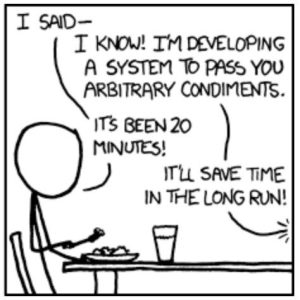
As a programmer, I do have a bias towards automation. I’d never let a 5 minute task go without spending an hour writing a tool to do it for me! OK, maybe only semi-joking.
Seriously, though, automation helps you to:
- Save time on repetitive, non-priority tasks
- Avoid paying for help unnecessarily
- Reduce manual errors through rushing and not paying full attention
- Focus on more important activities that are more vital to growing your business
- Handle large volumes of ‘little tasks’ that add up, such as email, efficiently
- Clean your inbox, and therefore your brain capacity, organised and spam-free
- Run 24/7 behind the scenes, so things do not stack up while you are not working
- Continually optimise processes, increasing outcome quality and usefulness
There are probably more benefits that are not coming to mind right now. Let me know if you think of any!
Introducing n8n: A No-Code Automation Platform
n8n is an online platform that allows you to create custom workflows to automate activities like managing your emails, updating spreadsheets, or triggering actions on a schedule.
The best part? You don’t need to write any code (you can, you just do not need to).
- Check out the previous post in this n8n series for a more in-depth introduction.
The platform provides an easy interface where you can connect tools you already use, such as Gmail and Google Sheets, and set up automation in just a few simple steps.
Getting Started with n8n
- Sign up for a free n8n account
- Create a new workflow and select a trigger (manual or scheduled)
- Connect Gmail and set filters (e.g., find emails with “unsubscribe”)
- Define actions (e.g., mark as spam, move emails, or extract data)
- Run workflows manually or schedule for automatic operation
- Connect Google Sheets to log email data or manage contacts
- Review execution logs to ensure accuracy and refine filters
Step 1: Sign Up for an n8n Free Trial Account
- Visit n8n.io
- Click Get Started
- Sign up for a free trial
- Set up your workspace (where your automation projects will live)
Step 2: Create Your First Workflow
- Once logged in, click Create Workflow
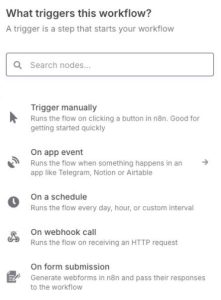
- Choose a trigger. A trigger is something that starts your automation running.
- For beginners, starting with manual or scheduled triggers works well
Building Your First Automation: Managing Your Gmail Inbox
There are an ever-growing number of applications that n8n can integrate directly or indirectly, so I thought for the first tutorial I would stick to something most people would be familiar with – dealing with email inbox woe!
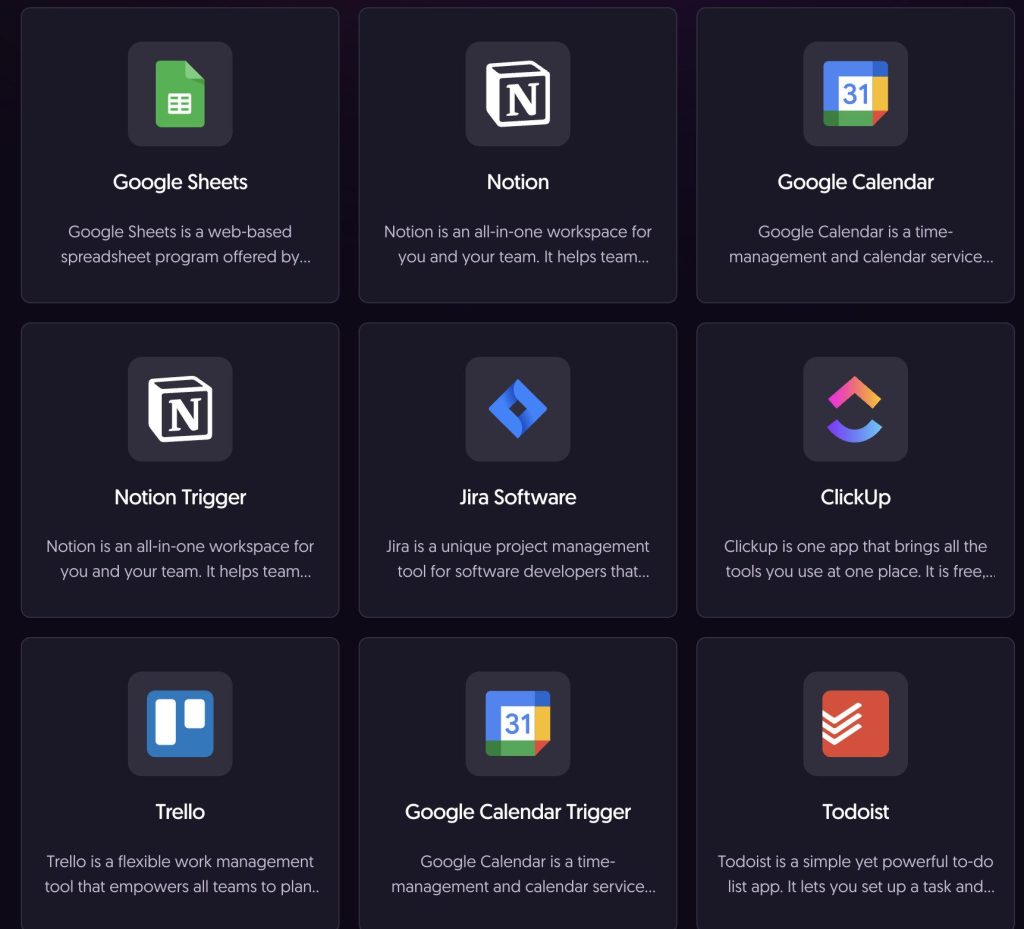
Let’s explore how to automate email filtering with Gmail and organise your Gmail inbox effortlessly.
Connecting Gmail
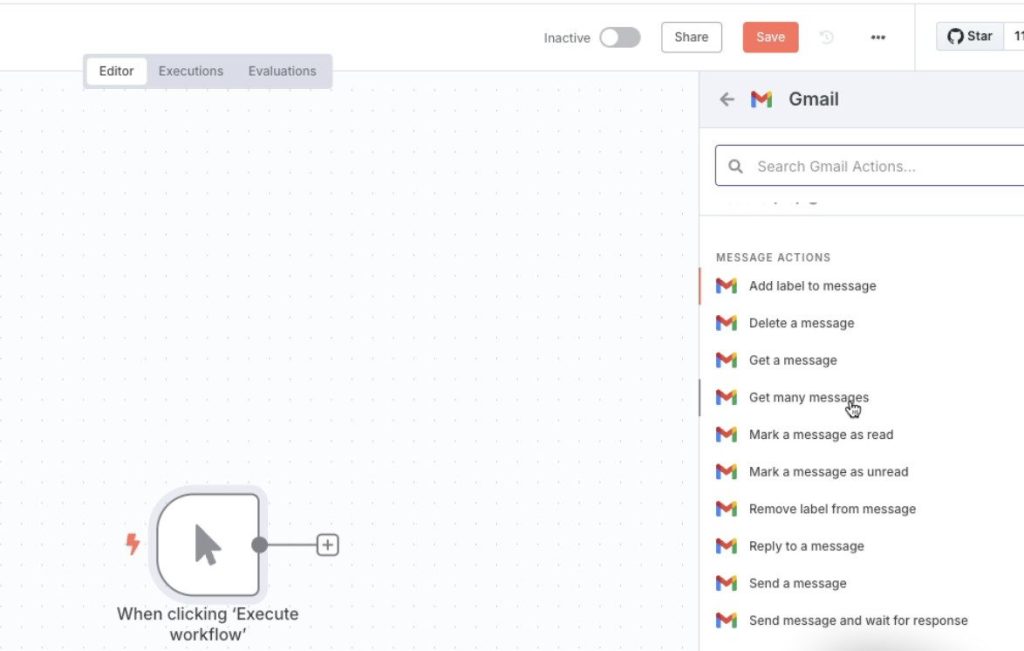
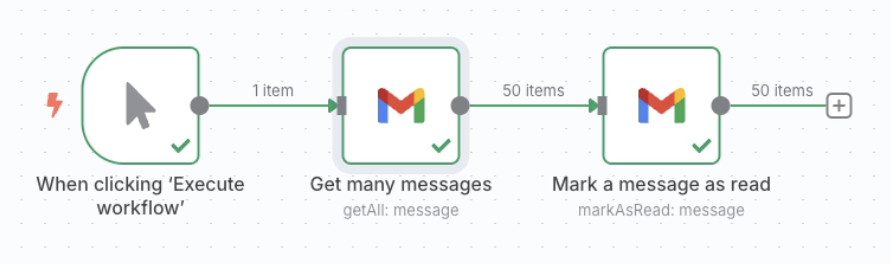
- Add a Gmail connection and authorize the platform to access your account
- Choose whether to fetch all emails or just a specific number
- Decide if you want the raw email data or a simplified version for easier processing
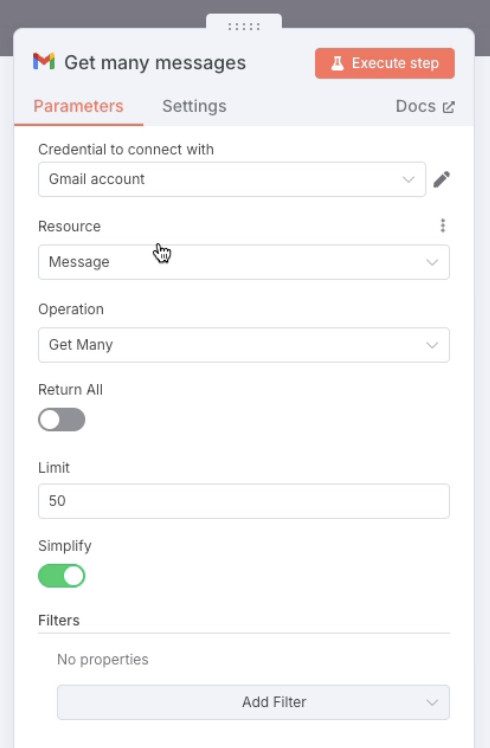
Filtering Unsubscribe Links
- Set up a search filter to find emails containing “unsubscribe” links
- Execute the search to see which emails include unsubscribe options
- You can choose to review raw data if you need detailed info

Marking Spam
- Now click the + to add the next action
- For example: mark the emails as Read or move them to a Spam folder
- If you mark as read, then you can also filter the original ‘Get Emails’ to only unread emails to avoid processing the same messages repeatedly


Automating the Process
- Run the workflow manually or schedule it to run at intervals (like every minute, hour, etc.)
- Each execution scans your inbox and applies filters automatically
Automation for Email Management
Here are some common ways I use gmail automation:
- Identifying and labelling promotional emails: Filter emails containing certain red flag keyword phrases and categorise them
- Handling link exchange or guest post requests: Detect keywords like “guest post” or “link exchange” and move such emails to spam
- Allowing Email Newsletter subscribers to take action: You might have noticed in my emails I sometimes say “Hit reply and say ‘I am in’ to take part”. While I didn’t always use n8n for this, it is a handy way to allow people to respond naturally and easily.
- Making coaching and retainer clients a priority: Having a list of clients allows me to prioritise people who are paying me to pay attention!
- Pinging my Slack when something urgent happens: Some things need to be dealt with right away, even when I am out and about doing other things. If I get an email with certain text, I also want to get a popup on my phone.
You might be wondering why use a third-party tool when Gmail filters can already do some of this? Well, the real magic of n8n is when the existing tools do not already have workflows, or as in the next example, when you can gain additional benefit by connecting multiple tools together.
How to Connect n8n to Google Sheets – Process Email Data with Google Sheets
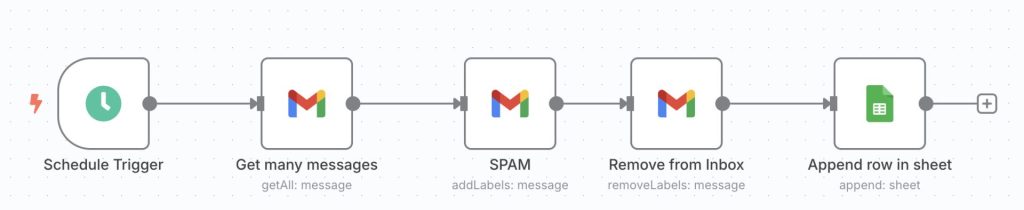
Besides organizing emails, you can send data from Gmail directly into Google Sheets for analysis or record-keeping.
Creating the Spreadsheet
- Set up a Google Sheets document (e.g., Potential Spammers)
- Connect your Google account with n8n (you will be asked to give permissions such as the ability to read and modify your documents)

Populate the Sheet with Email Addresses
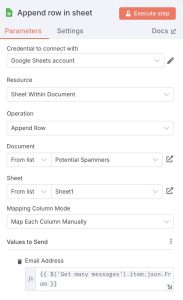
- Fetch email data, such as sender addresses
- Append this data as new rows in your sheet
- Use this list to review potential spam sources or malicious contacts
Opportunities
- Keep an automatic log of suspicious addresses
- Create a list of non-spammers to protect in future workflows
- Monitor recurring patterns to tune the rules
- Make informed decisions about your email processes
Managing Your n8n Workflows
Monitoring the automation:
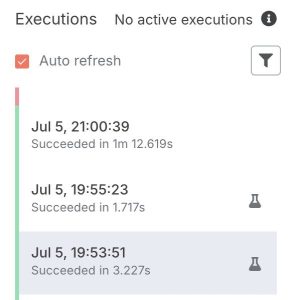
- Each time a workflow runs, you can review what actions it took
- Check execution logs to see which emails were processed and how
- Adjust filters or actions based on results
Scheduling flexible runs:
- Schedule workflows to run as often as needed (per minute, hour, day) but keep in mind the free trial has a limit of 1000 automated executions
- Use schedules to maintain ongoing inbox hygiene with minimal effort on your part
Additional Tips for Successful Automation
- Start small; automate simple tasks first
- Regularly review logs to verify accuracy
- Add filters carefully to avoid accidentally marking important emails as spam
- Use protected lists to prevent critical contacts from being filtered
- Expand automation gradually for more complex workflows (e.g., integrating with other tools)
Bottom Line
Automating annoying but necessary tasks such as email management and data collection can offer significant time savings and improve your efficiency, once you get the hang of it.
Apps like n8n make automation accessible to everyone, regardless of technical background, by providing a visual tool to connect familiar services like Gmail and Google Sheets.
You not only save substantial time but free up your brain for creativity, plus your automations can be tailored to your specific needs and processes, helping you focus on what really matters for growing your business, in the way you want it doing, every time.
Automation is a powerful tool that, when used wisely, can transform your daily task list and give you back brain bandwidth. It offers more productive workdays, all without needing to pay a developer or virtual assistant.